

The Duex Max DS External Display certainly meets its initial taglines. The body is lightweight and the overall profile could generously be described as slim. However, the product is not without its issues.
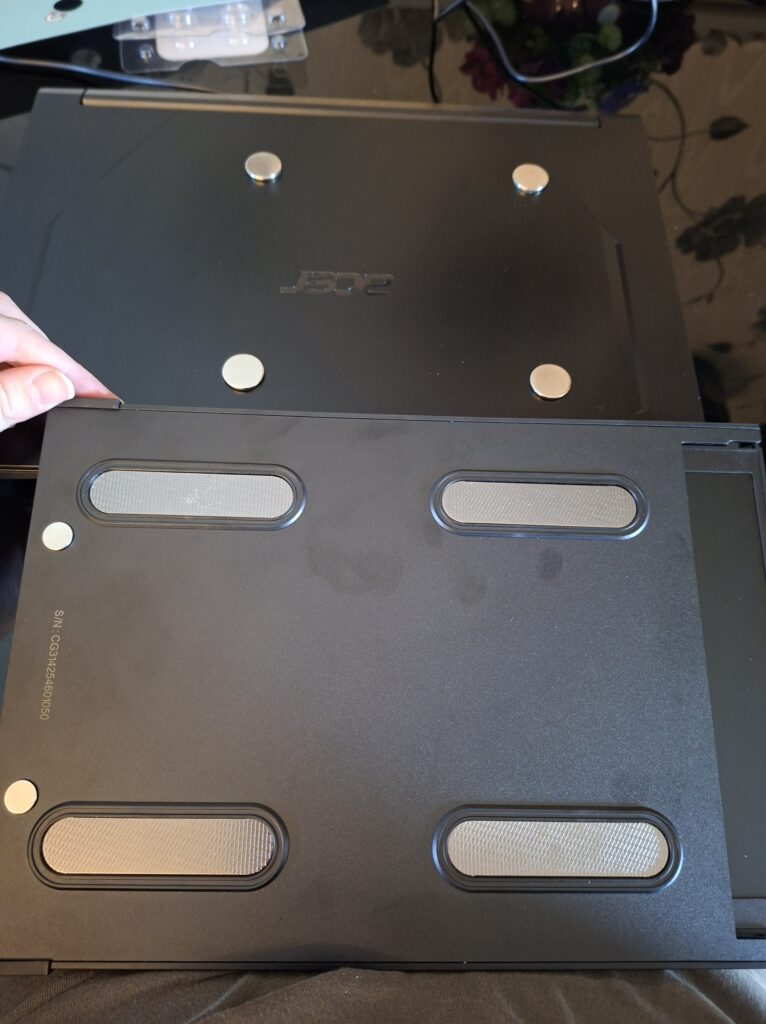
For starters, we can go over my laptop. I’m running a five and a bit year old Acer Nitro 5 AN515-44, which is listed as a 15.6 Inch Gaming Laptop with the display ports on the right. If you’re mounting the display to the laptop, you need to affix four magnets to the back of your display, which attach to the metal plates on the display housing. This isn’t the only mode the display can work in, with this model also offering a portrait mode that does not require mounting (but does have a very large footprint).
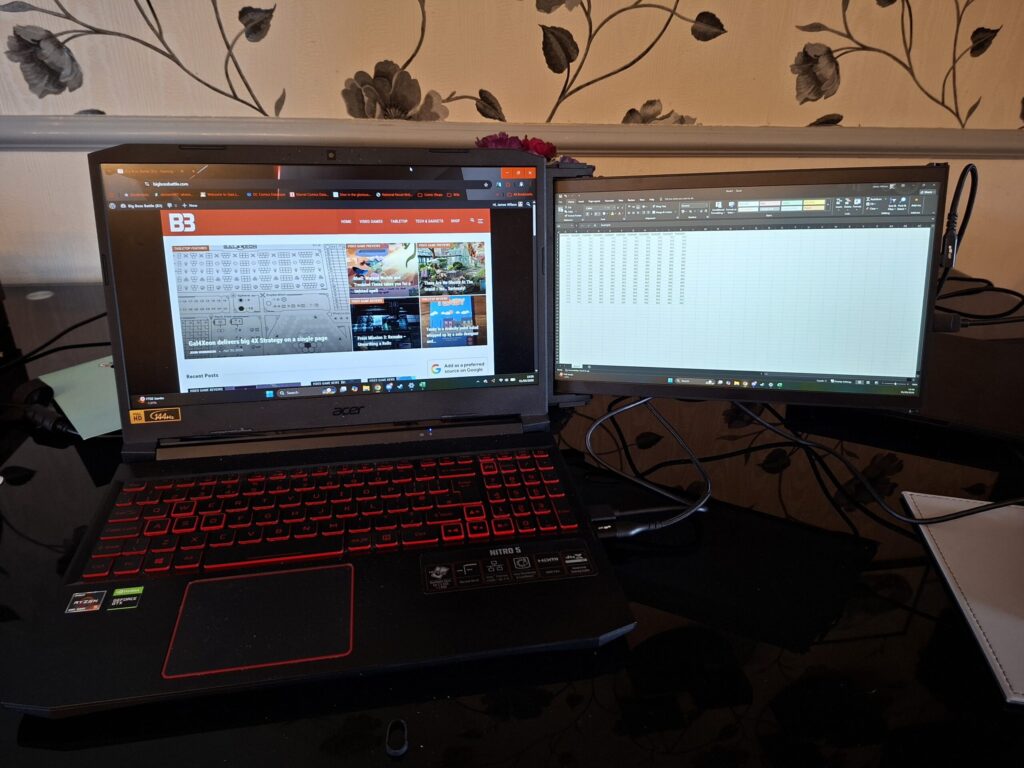
I’m going to drop the specsheet below (I ordered the 14.1in model, the Max, but a 13.3in model is also available called the Plus), and then talk about my experience with setting up the monitor and using it. I tested it for some basic office work and web browsing, as the product is designed more as a productivity aid, so I did not run any intense Warzone games or the like on there.
| Dimensions | |
| Display size | 14.1 In |
| Width | 8.9 In |
| Length | 12.6 Inch |
| Thinnest Point | 0.35in / 8.9mm |
| Thickest Point | 0.6in / 15.3mm |
| Weight | 1.8lb |
| Display Connections | USB-C, Mini HDMI |
| Power Connections | USB-C/A |
| Resolution | 1920 x 1080 pixels |
| Aspect Ratio | 16:9 |
| Screen | LCD |
| Brightness | 300nit (adjustable) |
| Material | ABS and aluminum alloy |
| Energy Consumption | 4.5W |
| Refresh rate | 60hz |
| Compatibility | Windows, MacOS, Linux, ChromeOS, Switch, Android (Samsung Dex) |
Now, the first thing I noticed when unboxing the display is that the chassis is… functional at best. Whilst the housing feels of decent quality, the sliding joints when moving the screen in and out the whole mechanism felt very rickety, you had to get very precise angles and the body and screen flexed enough that it became increasingly difficult to manage. This is improved when actually mounted, but not eliminated entirely. Any amount of pressure does cause the device to bow a little, but it is only temporary.
I know it comes with the territory, but if the screen is mounted on your laptop, it also feels incredibly flimsy. It waves, it wiggles, and whilst it stays in the same general area, it just doesn’t feel secure. This may seem obvious when you realise the entire thing is held up by four magnets, so it can work with the maximum possible number of displays, but I still feel like it’s important to note. If you aren’t mounting the display, you don’t have to worry about it wiggling when in portrait mode, as this stiffness is what causes the aforementioned problems in sheathing and unsheathing the display.
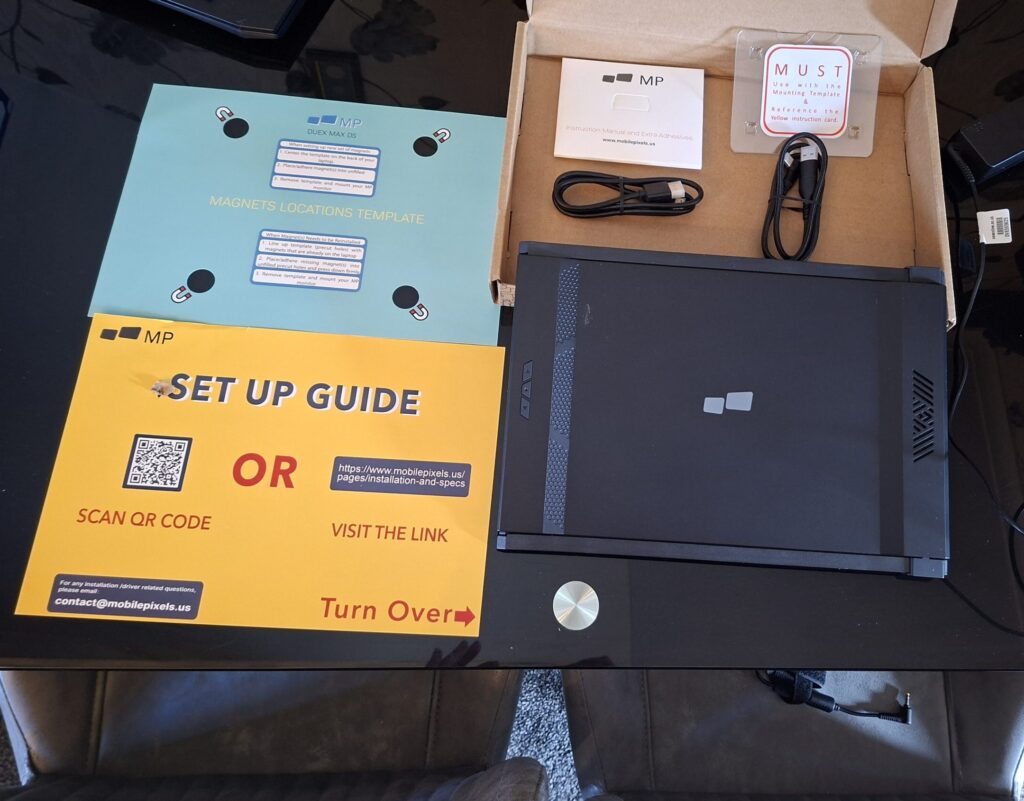
MP provide a paper template for mounting the magnets on your device. If you have a similar size display, you centre the mounting paper, if not, you have to pick a side to mount. I’ll come back to this later, but I mounted mine to the right of the laptop. Adhering the magnets was a frustrating experience and (spoiler alert) removing them when I was done with the review (since after daily driving I do not want to keep using this) was not a fun process either. My laptop, unsurprisingly, does contain some magnetic components, and the magnets were strong enough to leap from my hands to either hug their brethren, or stick just to the left of where I actually wanted them to go. Once fixed (and after pushing down on them to stimulate the adhesive), they stayed in place, even with a display hanging off them. On the display housing, there are long metal plates that these magnets stick to. This results in the entire housing sliding horizontally on the back of your laptop to make sure the screen sticks out enough to manipulate, which does not feel right at all.
Earlier I mentioned that my laptop’s HDMI (and free USB ports) are on the right. This is important due to how the cabling works with this display. The ports on the display are all on the far side of the screen. The only way I could get the provided cables to reach was to mount the display on the right of my laptop. This means that once the cabling was connected, it all hung directly over my hand and mouse.
I did most of my testing on my dining table, since this is where I do a lot of my writing and administrative work, and even with that amount of free space it was still a consistent problem. I hate to think how much worse it would be on an average desk in a gaming room or office space. This problem is alleviated a little if you have the display free-standing, but this method has the cable running to the top of the display, meaning you have to have it relatively close to your laptop due to the provided cable lengths.
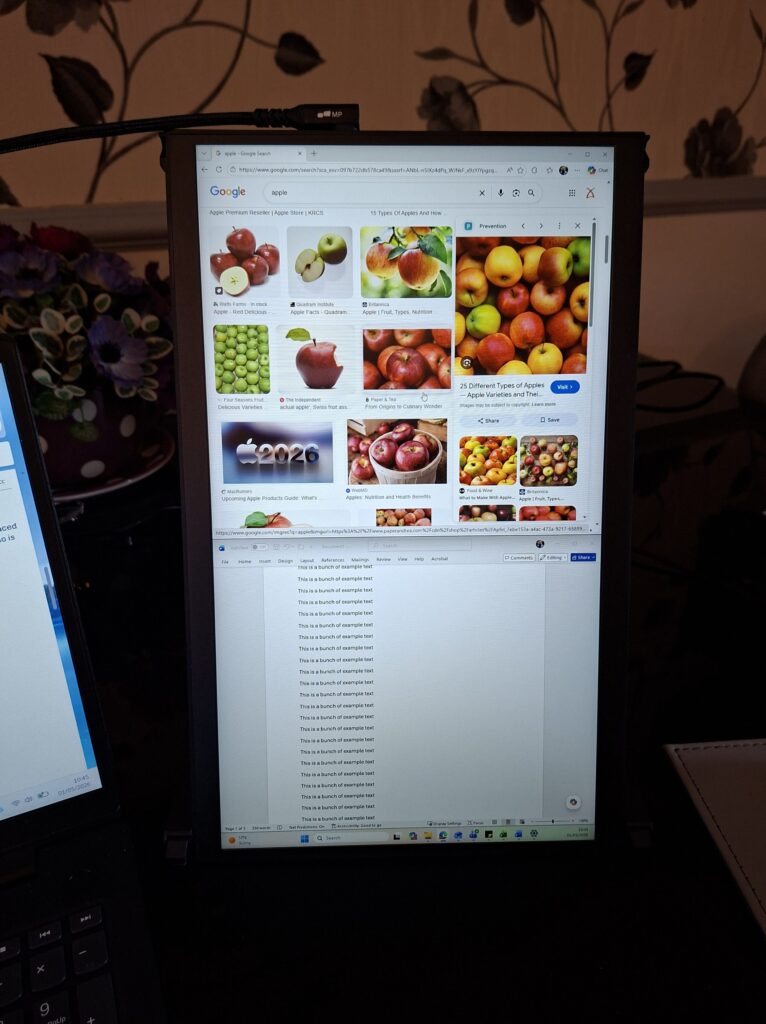
In this mode, the screen uses the housing as a stand/foot. That means that you need room to lay an entire 14in monitor flat on whatever surface you’re using. Most larger (and cheaper) displays will have similar, or probably smaller, footprints and you might be better using those.
On to positives, I have few complaints about the display itself. It’s bright, crisp, and easy to use for most productivity needs. In portrait mode, the default settings make it very zoomed out, but with tweaking I’m sure you can find a set up you are comfortable with. I was also never confused during the set-up process. All the cabling is plug in and play, and the provided instructional leaflets and videos are very clear on every step you’re supposed to take.
In summary, whilst the Duex Max DS Laptop Display may work for some people, I am definitely not one of them. Middling materials, poor ergonomic decisions, and an over inflated price far outweigh any positives I can draw here.
The Duex DS Series is available to purchase on the Mobile Pixels website.